Batch input first
Start from screenshots, videos, files, pasted text, or manual entry instead of one address at a time.
NaviBatch helps iPhone drivers build delivery runs from address lists, screenshots, and videos, then move the planned stops into Apple Maps with fewer repeated taps.
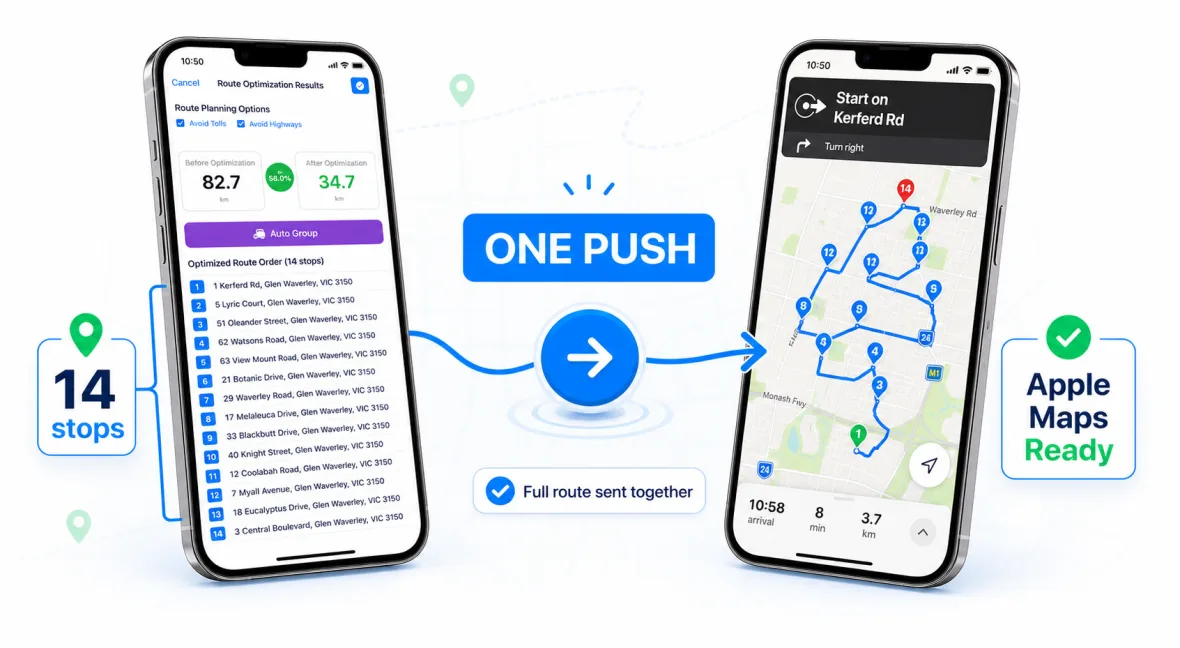
Many iPhone drivers prefer Apple Maps for turn-by-turn navigation, but the setup work can become repetitive when a route has many stops. You may need to copy addresses, add stops, reorder the route, and double-check the list before you start moving.
NaviBatch is designed to sit before Apple Maps in the workflow. It helps you collect the stops, clean the list, and prepare the run so Apple Maps can do what it does best: guide you on the road.
Start from screenshots, videos, files, pasted text, or manual entry instead of one address at a time.
Review the stop order and groups before handing the route to navigation.
Send the planned run to Apple Maps once the delivery route is ready.
Add the delivery list from images, video frames, files, paste, or manual input.
Fix any address recognition issues before the route goes to navigation.
Keep the route in manageable groups for the way Apple Maps handles stop handoff.
Open the planned route in Apple Maps and start the drive.
This workflow is useful for delivery drivers, couriers, gig workers, and small logistics teams who already use an iPhone on the road. If the stop list changes often or arrives as screenshots from another system, NaviBatch can reduce the setup friction before navigation.
It is also useful when the route needs to stay understandable. Instead of only relying on the map, you can keep the delivery list, order, package context, and proof-of-delivery workflow close together.
No. NaviBatch prepares and organizes the route, then Apple Maps handles navigation.
NaviBatch is designed around Apple Maps handoff, with grouping support for larger delivery runs.
Yes. NaviBatch can import addresses from screenshots and use them in your route preparation workflow.
Prepare the route in NaviBatch, then start navigation in Apple Maps when the run is ready.
Download NaviBatch