
OCR can misread details
Street numbers, abbreviations, unit numbers, and cropped rows are the most important details to check after screenshot or video import.
Screenshots, videos, and pasted delivery lists can save typing, but they still need driver review. NaviBatch keeps the review step visible so drivers can check OCR-sensitive addresses, apartment details, duplicates, and map pins before navigation.
Real delivery lists are rarely perfect. They can include apartment numbers on a second line, cropped screenshots, small text, duplicated-looking addresses, customer notes, and stop numbers that need to stay connected to the correct destination.
NaviBatch is built to reduce repeated address entry, not to remove driver judgment. The safer workflow is to import the delivery list, review the detected stops, check anything suspicious, then open a reviewed Apple Maps-sized group.
Street numbers, abbreviations, unit numbers, and cropped rows are the most important details to check after screenshot or video import.
An address can look readable while the matched location still deserves review, especially around apartments, similar street names, or incomplete rows.
Multiple packages may go to the same building. Review duplicate-looking stops before deleting or merging anything.
| Check | Why it matters | What to do |
|---|---|---|
| Street number | OCR can confuse similar digits or crop the beginning of a row. | Compare the detected stop with the original screenshot, video frame, file, or pasted list. |
| Apartment or unit | Unit details may appear on a second line or in smaller text. | Keep apartment, suite, floor, or unit information attached to the correct stop. |
| Stop or package number | Drivers often need package context even when the map destination is the same. | Check that stop numbers and package notes still match the original delivery list. |
| Duplicate-looking addresses | Duplicates may be OCR artifacts, or they may be multiple deliveries to one building. | Review before deleting, merging, or reordering those stops. |
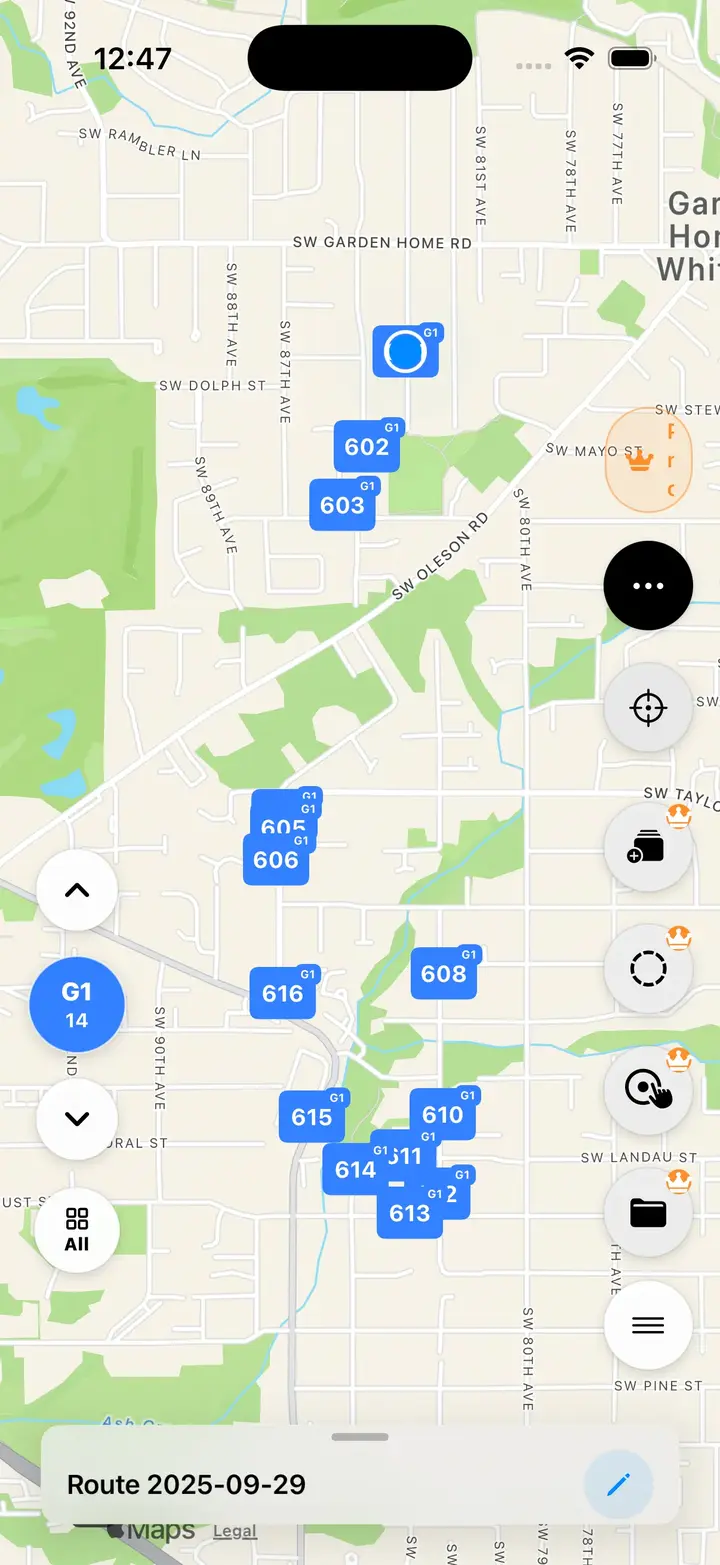
| Map pin | Some addresses need confirmation before turn-by-turn navigation starts. | Check suspicious pins before Apple Maps handoff and fix the stop if needed. |
NaviBatch supports multiple delivery input methods, including screenshots, long images, videos, files, pasted text, and manual entry. After import, drivers can review the stop list before grouping and handoff.
Recent reliability work has focused on address matching, coordinate review, duplicate handling, and import diagnostics. The public promise stays conservative: review the route before driving, and use Apple Maps for turn-by-turn navigation after handoff.
Do not send a suspicious group to Apple Maps until the stop has been reviewed.
Look back at the original screenshot, video, file, pasted list, or manual note.
Correct missing unit details, incomplete address text, or duplicate handling before grouping.
Send the import method and address context to support so the issue can be investigated.
Always complete route review before driving. NaviBatch prepares the route group; Apple Maps handles turn-by-turn navigation after handoff.
Delivery screenshots, videos, files, and pasted lists can include cropped text, OCR mistakes, duplicate rows, apartment details, and map pins that need driver confirmation before navigation.
No. NaviBatch is designed to keep review-before-routing visible so drivers can check detected addresses, unit details, duplicates, and map pins before Apple Maps handoff.
Check street numbers, apartment or unit details, stop numbers, duplicate-looking addresses, missing rows, suspicious OCR results, and map pins that do not match the intended destination.
Pause before handoff, compare the detected address with the original source, edit the stop if needed, and report the issue to NaviBatch support with the address context and import method.
Use NaviBatch to turn messy delivery inputs into reviewed Apple Maps-sized route groups.
Download NaviBatch