
Parcel runs
Turn a long list of parcel stops into reviewed groups instead of typing each address into the map.
Sydney, Melbourne, Brisbane, Perth or a regional run: import delivery addresses from a screenshot, long image or video on iPhone. Check unit numbers, suburbs and postcodes, then send groups of up to 14 planned stops to Apple Maps.
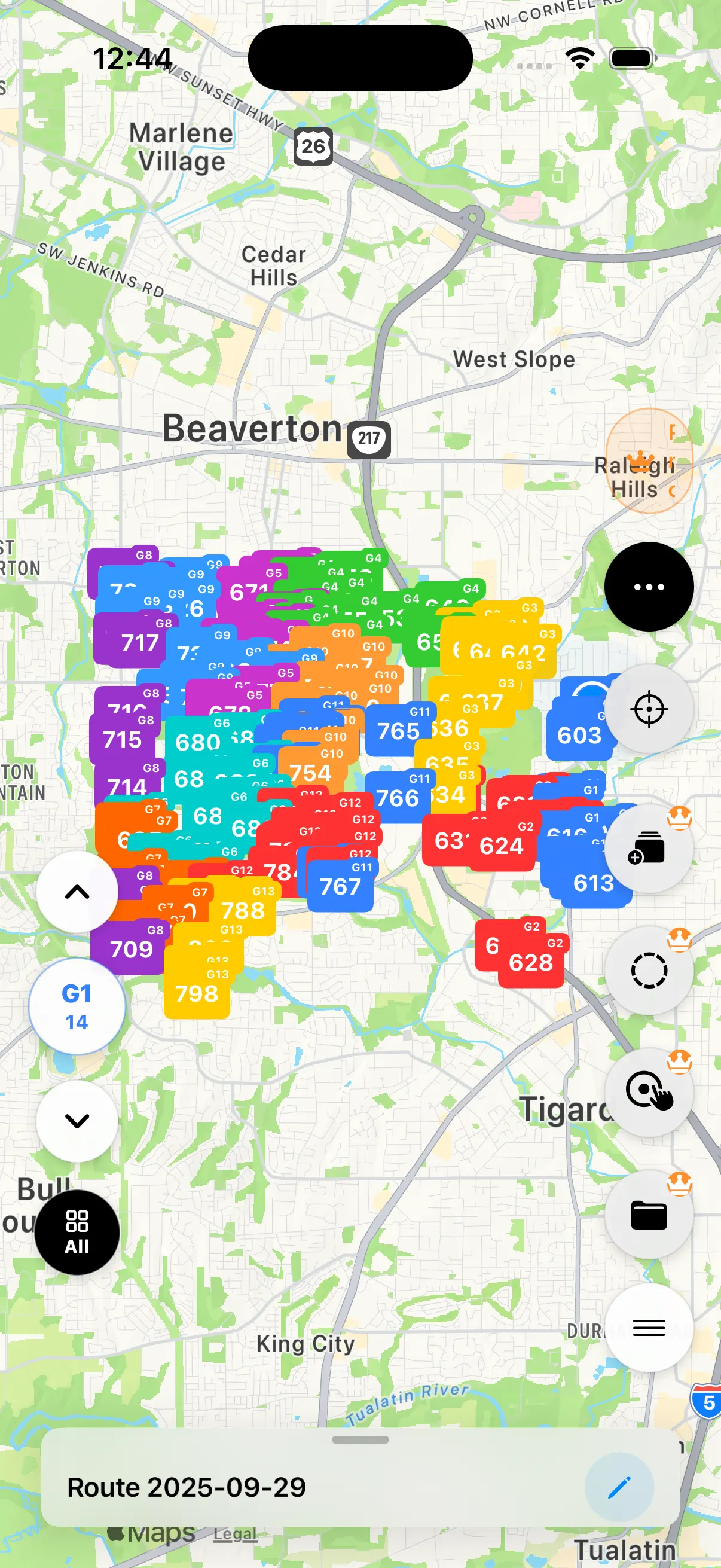
Many drivers in Australia carry parcels for Australia Post and StarTrack contractors, Amazon Flex, CouriersPlease, Aramex, DHL and local courier companies, or run their own florist, grocery and pharmacy deliveries. The stop list usually lives inside a courier app, a scanner, a manifest or a group chat.
NaviBatch does not connect to those systems. It starts from what you can see: take a screenshot or screen recording of the stop list, import it, review the addresses and plan the run. NaviBatch is independent and is not affiliated with any courier or delivery platform.
Turn a long list of parcel stops into reviewed groups instead of typing each address into the map.
Import the screenshots for a shift, remove duplicates and keep the stops that belong to today's run.
Paste or import customer addresses for small-business deliveries and plan them the same way.
Australian delivery addresses often come as unit and street number, street, suburb, state and postcode, sometimes split across several lines. Shortened forms such as "3/15 Smith St" mean unit 3 at number 15, and the same street name can appear in many suburbs.
Keep the unit or apartment number with the street address so it is still visible when you arrive.
Keep the postcode with each stop. Without it, a common street name can match the wrong suburb.
If one stop lands well away from the rest of the group, open it and fix the address before routing.
Add screenshots, a long image, a screen recording, a file or pasted text.
Compare the detected stops with your source and correct anything that looks wrong.
Optimize a freely reorderable list, or keep your loading order and optimize only a selected group.
Send one group of up to 14 planned stops to Apple Maps, then come back for the next group.
Yes. NaviBatch is an iPhone app that imports Australian delivery addresses from screenshots, long images, videos, files or pasted text. Drivers review the stops, then send groups of up to 14 planned stops to Apple Maps.
No. NaviBatch is independent and is not affiliated with any courier or delivery platform. It works with addresses the driver can see on screen, such as a screenshot of a stop list.
Many Australian street names repeat across suburbs and states. Keeping the suburb, state and postcode with each address helps the map place the right pin. Check any stop that lands far from the rest of the run.
Yes. When stop numbers reflect scan or loading order, keep the overall sequence and optimize only a selected group. For a freely reorderable list, use full-route optimization.
The confirmed workflow sends up to 14 planned stops per Apple Maps handoff. Other map options depend on the installed app version; check the options shown in your app.
Download NaviBatch, import today's stop list and review it before you drive. Prices are shown in the App Store.
Download NaviBatch